

Free · Runs in your browser
Design one card.
Get the whole deck.
CardGoblin turns a small script plus a spreadsheet into print-at-home cards. Describe a card once, let your data fill in the rest, and export a PDF that prints true to size.
No account required, no install. Anonymous projects stay in this browser unless you export them.
The idea
Your layout is code. Your content is a spreadsheet.
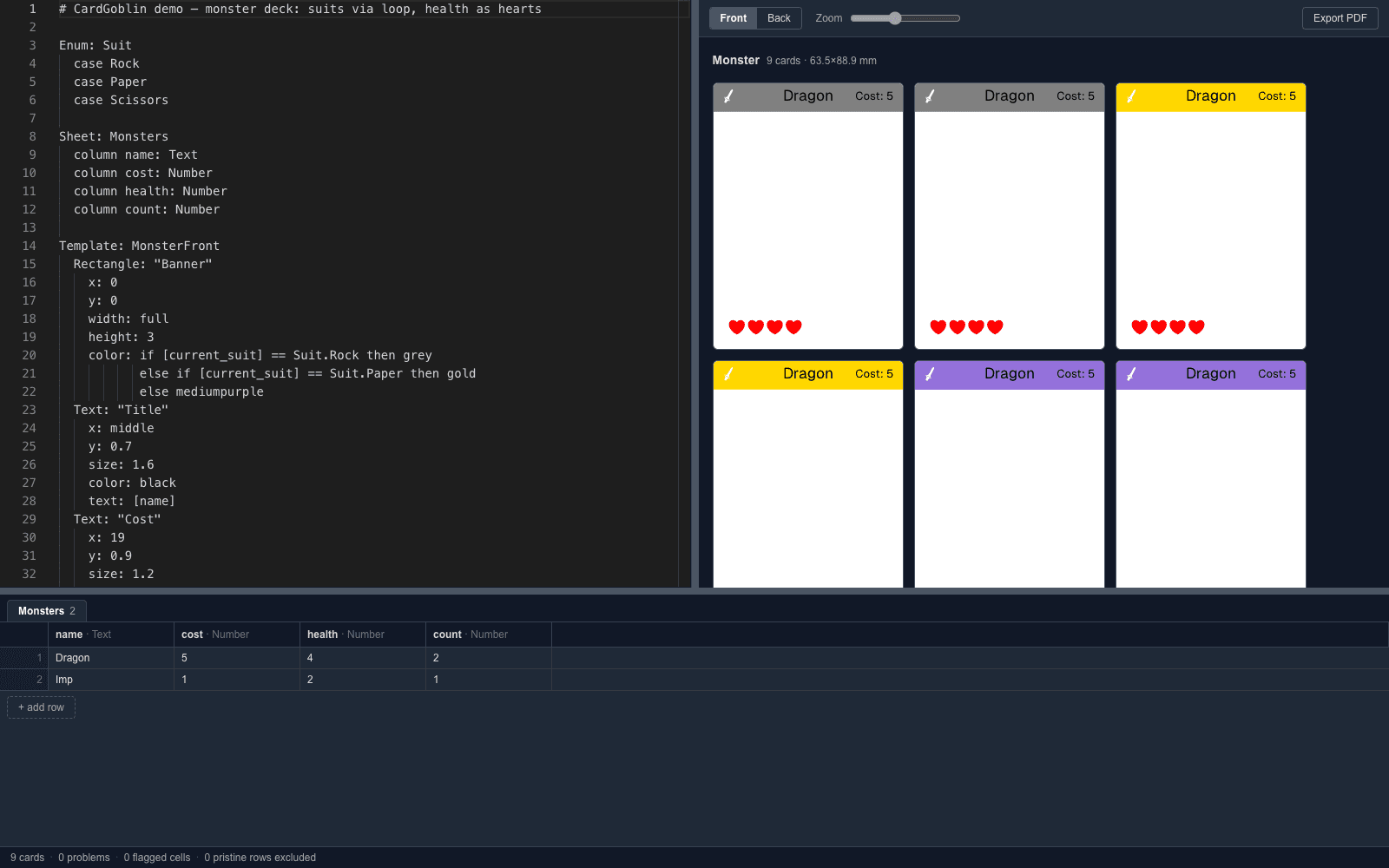
Write what a card looks like once. Every row of your sheet can generate one or more cards, and a number in a cell can become the number of icons drawn on them.
The script
Enum: Element
  case Fire
  case Water
  case Earth

Sheet: Spells
  column name: Text
  column element: Element
  column power: Number

Template: SpellFront
  Rectangle: "Banner"
    x: 0
    y: 0
    width: full
    height: 4.5
    color: if [element] == Element.Fire then crimson
           else if [element] == Element.Water then steelblue
           else darkolivegreen
  Text: "Name"
    x: middle
    y: 1.1
    size: 1.9
    color: white
    text: [name]
  Icon: "Sigil"
    x: middle
    y: 9.5
    size: 8
    color: gainsboro
    code: if [element] == Element.Fire then "D6"
          else if [element] == Element.Water then "D8"
          else "D20"
  Repeat: [power] as i
    Icon:
      x: 1.4 + [i] * 2.4
      y: 23.4
      size: 2.2
      color: goldenrod
      code: "COIN"

Card: Spell
  sheet: Spells
  size: poker
  x_units: 20
  y_units: auto
  Front: SpellFront
The deck
- power: 2
- → two coins drawn
- power: 4
- → four coins drawn
- power: 3
- → three coins drawn
Change a cell and only the cards using it redraw — about a third of a second after you stop typing.
How it works
Three panels, one live loop
Code, preview, and spreadsheet stay in sync. Break your script mid-thought and the preview holds the last good render instead of going blank.
- 1
Declare your columns
A Sheet block names the columns your cards need. The spreadsheet panel builds itself to match, and every reference is checked as you type.
- 2
Draw the card once
A Template is a list of shapes — rectangles, text, icons — positioned on a unit grid. Pull values in with [brackets] and repeat shapes from data.
- 3
Fill rows, export the PDF
Type your data, watch the deck build live, then export with cut lines and duplex-mirrored backs at exact millimetres.
What you get
Built for decks with structure
If your game has sixty cards that differ by a name, a number, and an icon, this is the part that pays off.
Data-driven repeats
Repeat: [health] as i draws one shape per point — health bars, cost pips, damage tracks. One number in, N shapes out.
Learn more →888 game icons
Dice, card suits, dominoes, coins, tarot suits and more from the Dicier typeface — vector, colorable, and computed from your data.
Learn more →Print-ready PDF
Letter or A4, cut lines, crop marks, and duplex-mirrored backs at 300 DPI. Cards come out at exact millimetres, not “about right”.
Learn more →Mistakes stay local
A bad cell turns only the cards generated from that row into labelled placeholders — never a blank deck. Typos squiggle before they reach a card.
Learn more →Real expressions
Arithmetic, comparisons, and if/then/else anywhere a value goes. Colors, text, icon codes, and positions can all depend on the row.
Learn more →Decks that scale
Rows × loops × copies. Rank-and-suit decks come from a handful of rows, and 500-card decks stay interactive.
Learn more →
Your deck is mostly data wearing a layout
Stop editing sixty cards by hand. Choose a starter or import a project, then change a number and watch it ripple.